Appearance
Jotform
Jotform is an online form builder and data collection platform that allows users to create, customize, and manage forms, surveys, and applications without requiring coding skills. It's a versatile tool for professionals and organizations aiming to streamline their data collection and management processes.
Key features of Jotform:
- Drag-and-Drop Form Builder: Create forms quickly using an intuitive interface.
- Templates: A library of pre-designed templates for different industries and purposes.
- Integrations: Connect with third-party apps like Google Drive, Dropbox, PayPal, and more for seamless workflow automation.
- Customizable Design: Tailor forms with branding elements like logos, colors, and themes.
- Conditional Logic: Create dynamic forms that adjust questions based on user input.
- Payment Processing: Collect payments through integrated gateways like Stripe, PayPal, and Square.
- Data Collection and Analysis: View and analyze form submissions through reports and visual dashboards.
- Mobile-Friendly: Responsive forms that work across all devices, with a dedicated mobile app for offline use.
- Security: Includes features like SSL encryption, HIPAA compliance (on certain plans), and data encryption.
Further information
Read more detailed information on Jotform here.
Trigger:
New submissions: Triggers when a new submission has been added to a specific form.
Connect with Jotform:
Log in to your Jotform account: https://www.jotform.com/.
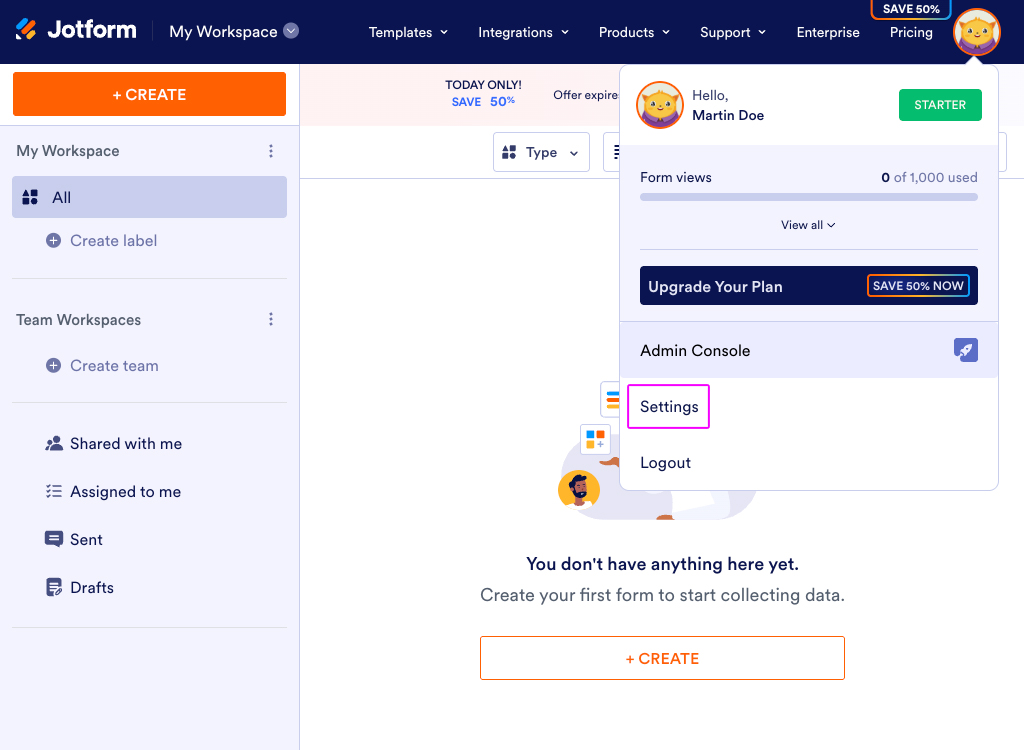
Click the Default User Icon button in the top-right corner, and navigate to the Settings button.
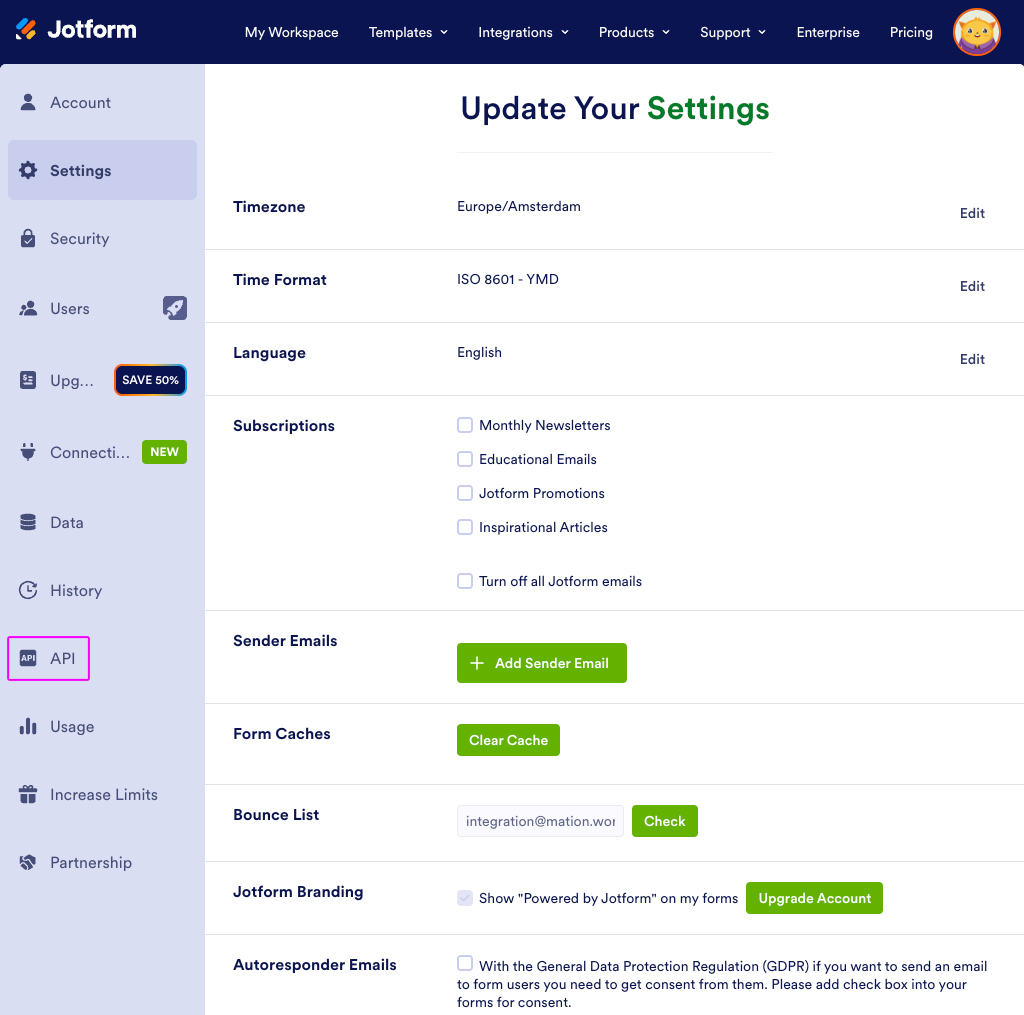
Click the API button in the left sidebar.
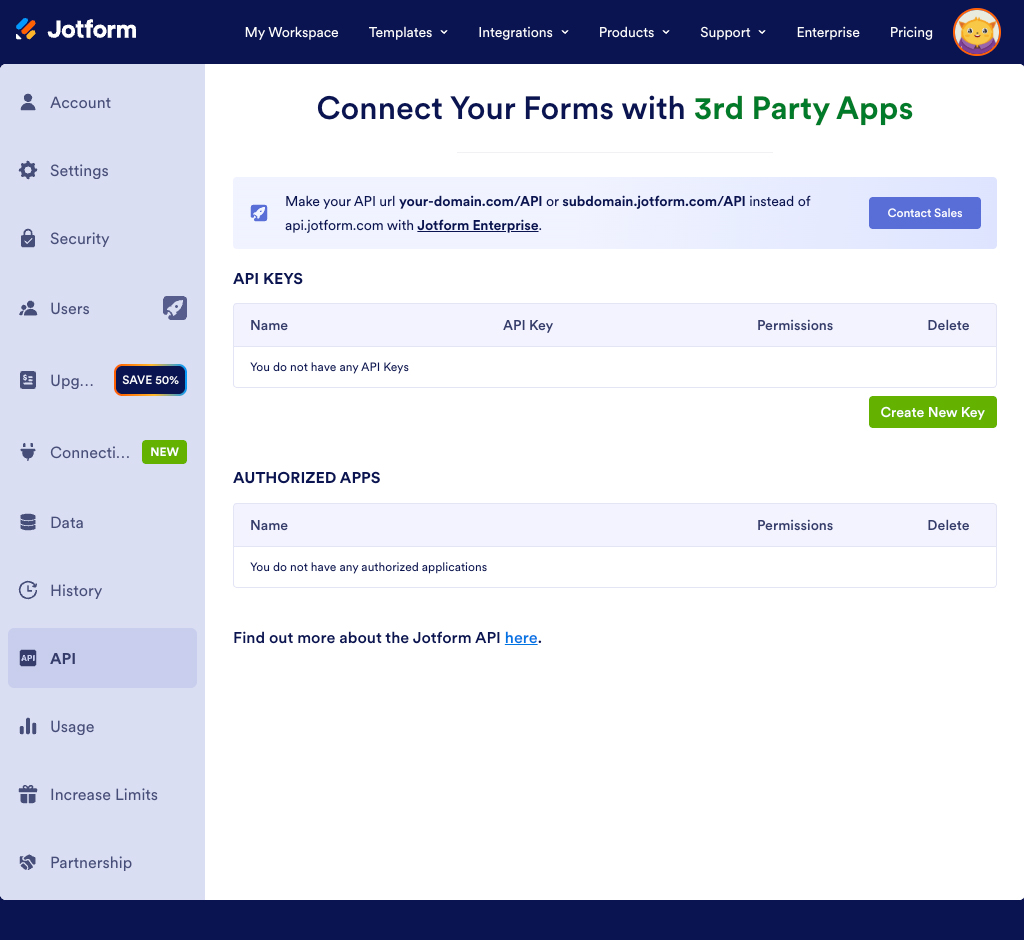
Click the Create New Key button.
Click the Read Access permission and ensure that the API Key you just created is granted Full Access.
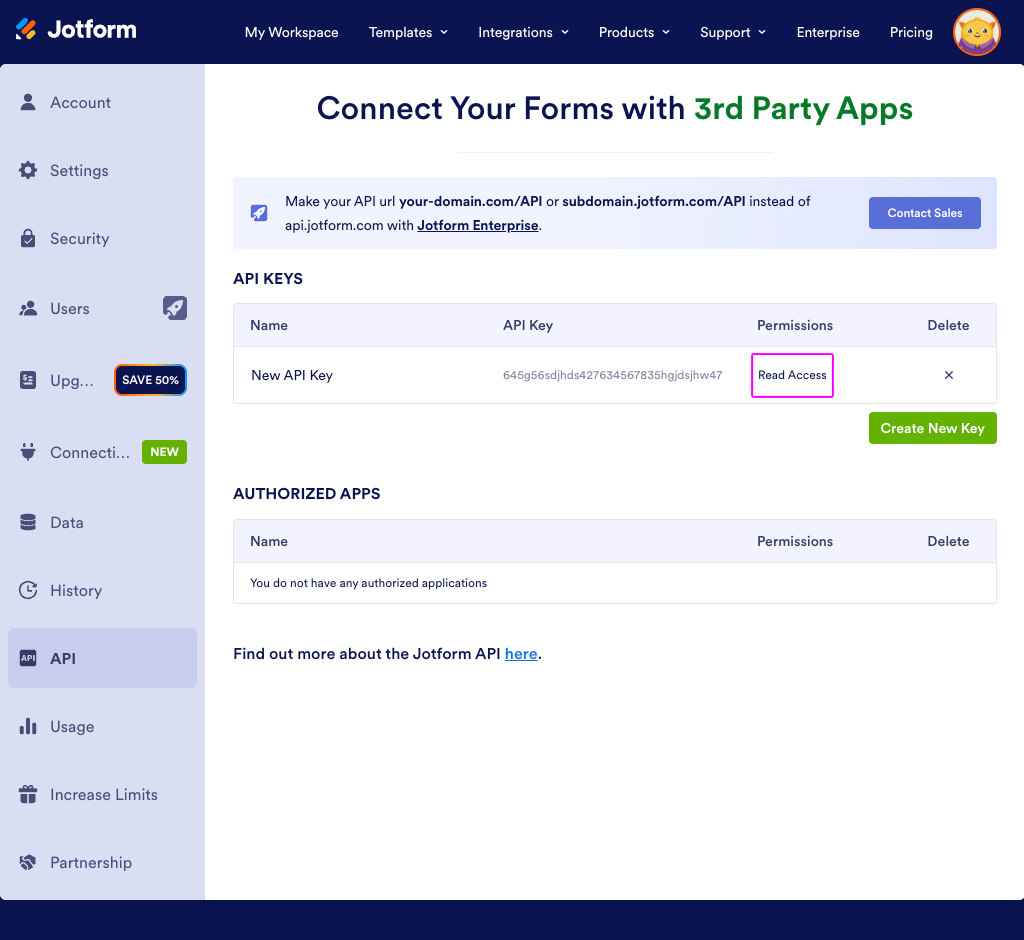
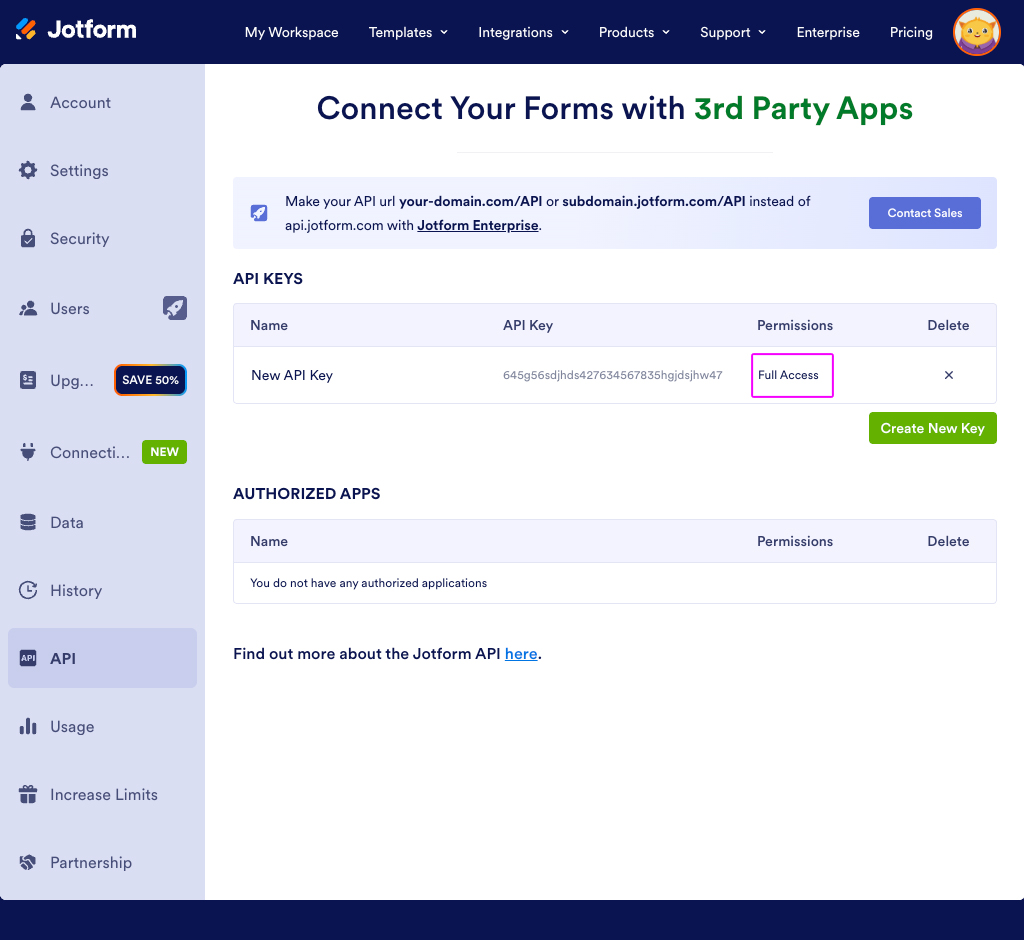
Then, copy the
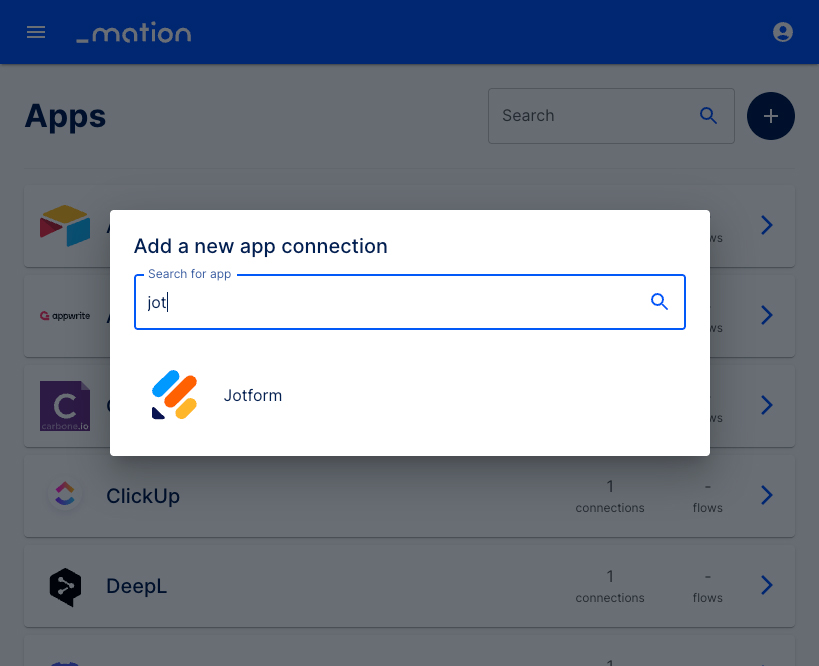
API Keyvalue.Go to Mation and navigate to Apps. Click the + Add Connection button. In the popup, select Jotform from the list.
Paste the
API Keyvalue into the API Key field.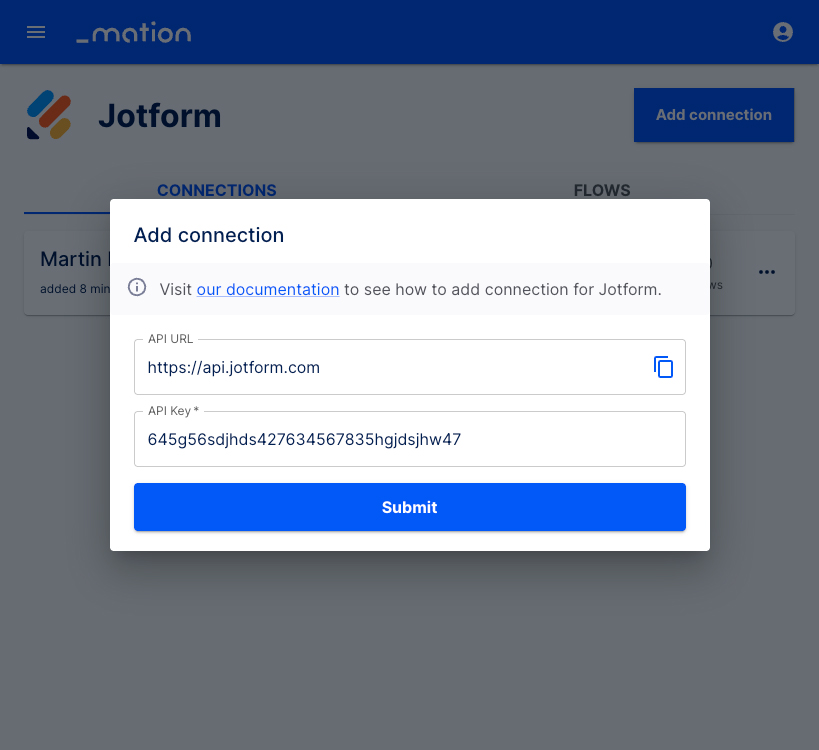
Adapt the API URL default value if necessary:
- European Community: https://eu-api.jotform.com
- HIPAA: https://hipaa-api.jotform.com
- Jotform Enterprise Customers: The API URL of your Jotform Enterprise instance, e.g. https://subdomain.jotform.com/API or https://your-domain.com/API. More information may be found in the Jotform API documentation.
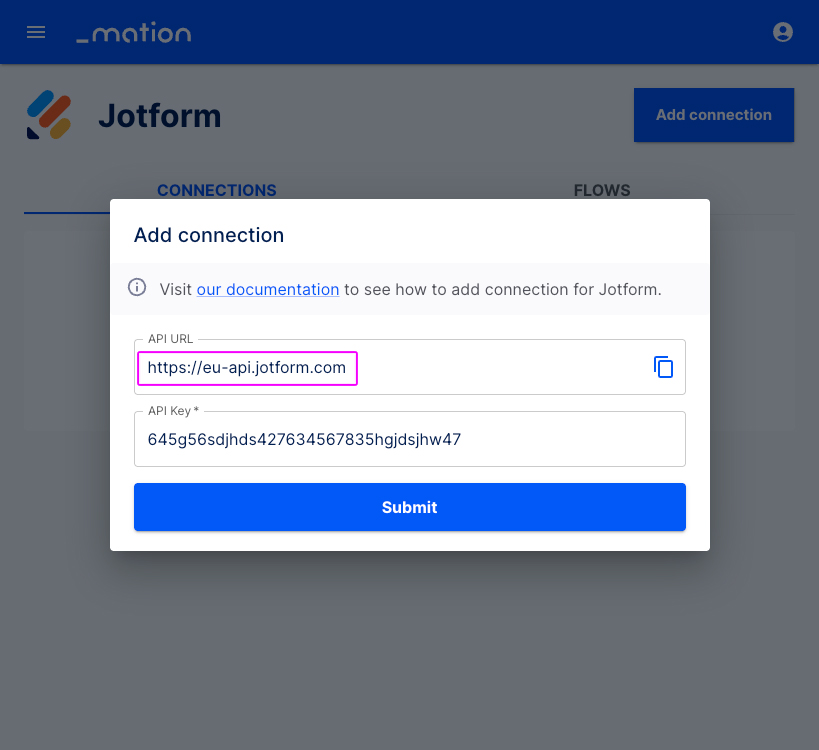
Click the Submit button.
Your Jotform connection is now established.
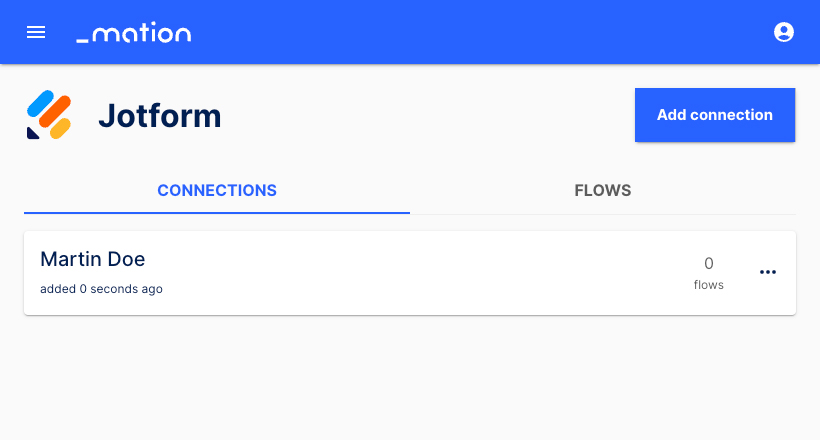
Start using your new Jotform connection with Mation.